
Download Oops!Backup – Secure File Backup, Version History & Easy Restore Tool
Overview
Oops!Backup is a purpose‑built backup and restore application that gives Windows users the peace of mind of a Time Machine‑style safety net. Whether you are a freelance writer who can’t afford to lose a draft, a small business protecting client data, or a home user who simply wants a “plug‑and‑protect” safety net, Oops!Backup delivers a clean, intuitive interface coupled with powerful version‑control capabilities. The moment you launch the program you are prompted to select source folders and a destination drive—preferably on a different physical disk to guard against drive failure.
From there you can enable double‑backup, schedule incremental runs, and even set up network‑wide backups for small office environments. Its standout feature is the ability to keep multiple historic versions of each file, letting you roll back to a previous state with a single click. In addition, Oops!Backup offers “plug‑and‑protect” mode, which automatically starts a backup as soon as your external drive is connected, making the process truly hands‑free.
Overall, Oops!Backup blends the reliability of enterprise‑grade backup engines with a user‑friendly experience that feels native to Windows.
Core Features That Set Oops!Backup Apart
- Automatic Versioning: Every time a file changes, Oops!Backup captures a new snapshot. Users can define how often snapshots are taken—immediately, hourly, or at custom intervals—building a complete history for any document.
- Dual‑Drive Redundancy: The software encourages you to select a second backup drive, automatically mirroring data to protect against primary drive failure.
- Network‑Ready Backups: Small offices can point Oops!Backup to a centralized server, allowing multiple workstations to share a common backup repository.
- Plug‑and‑Protect Mode: Connect a USB or external HDD and the application starts backing up without any manual intervention, perfect for users who forget to schedule runs.
- Flexible Retention Policies: Choose how many backup sets to keep, set expiration dates, or limit storage usage with size‑based caps.
- Granular Scheduling: Schedule backups to run at night, on weekends, or any custom cadence, ensuring that performance‑intensive tasks don’t interfere with daily work.
- Restore Wizard: A step‑by‑step interface guides you through locating a file, selecting the desired version, and restoring it to its original location or a new folder.
- Encryption & Secure Transfer: All backup data can be encrypted with AES‑256, and network transfers are protected with TLS, keeping sensitive information safe.
- Lightweight Footprint: The application runs quietly in the background, using minimal CPU and RAM, making it suitable for older machines.
- Comprehensive Reporting: Detailed logs and email notifications keep you informed about successful backups, failures, and storage usage.
Installation, Setup & Compatibility
Step‑by‑Step Installation Guide
Downloading and installing Oops!Backup is straightforward. After you click the Download button on the official site, you receive a small executable (≈ 25 MB) that works on Windows 10, 11, and Windows Server editions. Run the installer, accept the license agreement, and choose a destination folder—by default the program installs to C:\Program Files\OopsBackup. The wizard also offers an optional “Create Desktop Shortcut” for quick access.
Initial Configuration
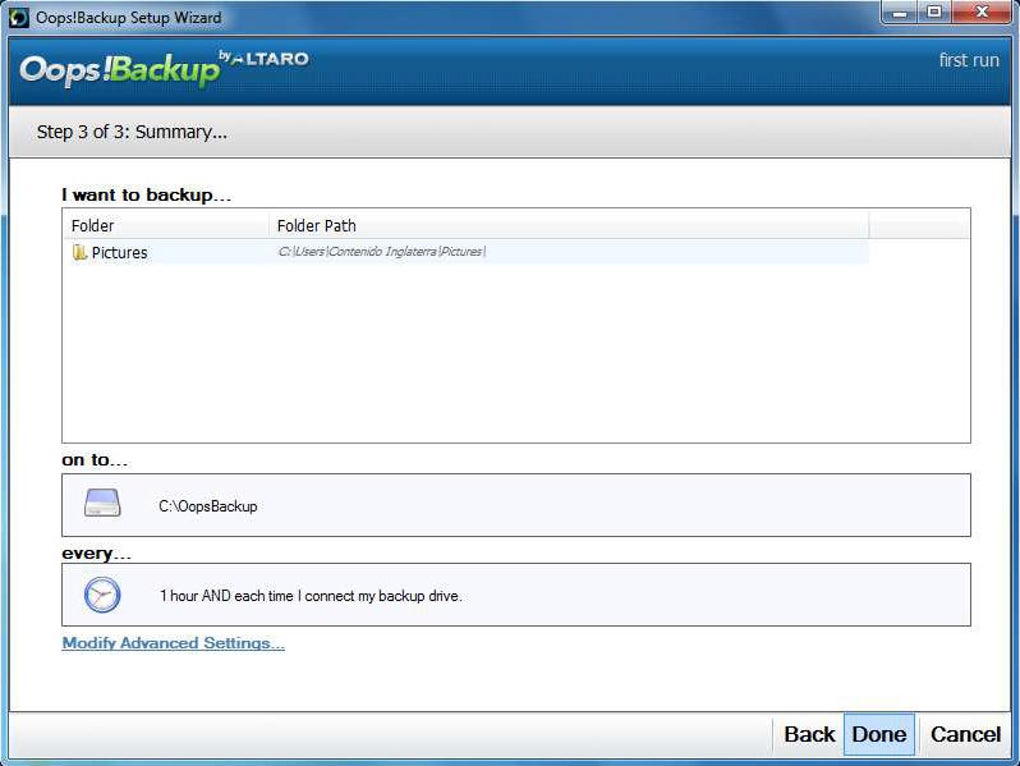
When you launch Oops!Backup for the first time, the Setup Assistant walks you through three essential decisions:
- Select Source Folders: Browse to the directories you wish to protect—documents, photos, project folders, etc. You can add multiple locations and even exclude sub‑folders if needed.
- Choose Destination Drive: The assistant recommends a different physical drive to avoid single‑point failures. If you have a second internal HDD or an external SSD, select it here.
- Define Backup Strategy: Pick between “Immediate”, “Hourly”, “Daily” or a custom schedule. Enable versioning depth (e.g., keep the last 30 versions) and decide whether you want double‑backup to a third drive.
Operating System Compatibility
Oops!Backup is built for Windows platforms, supporting Windows 10 (1809 and newer), Windows 11, and Windows Server 2016/2019/2022. The software runs in both 32‑bit and 64‑bit environments, though a 64‑bit OS is recommended for handling large backup sets efficiently. It integrates seamlessly with the Windows Task Scheduler, allowing background jobs to run without user login.
First Backup & Ongoing Usage
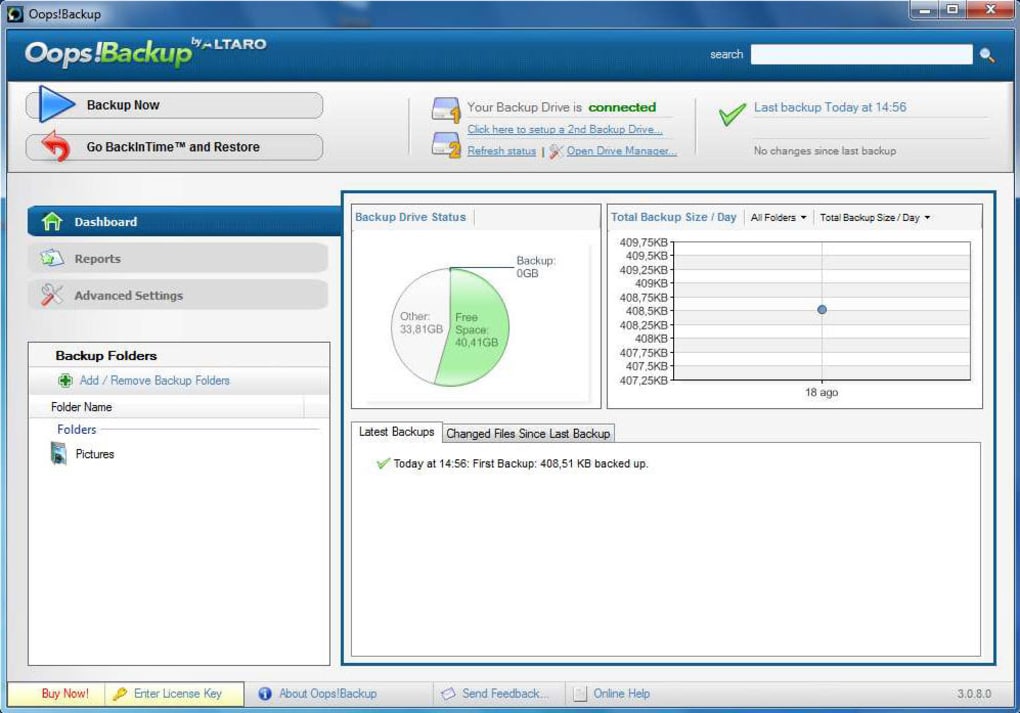
After configuration, click Start Backup. The initial run copies all selected files to the destination, creating the first version snapshot. Subsequent runs are incremental—only changed files are copied, dramatically reducing bandwidth and storage consumption.
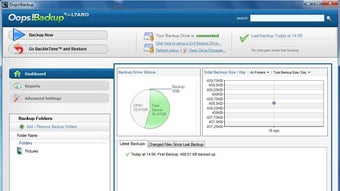
The Dashboard displays real‑time progress, estimated time remaining, and any errors that need attention. To restore a file, navigate to the Restore tab, browse the version history, and click Restore. You can also right‑click a file in Windows Explorer and select “Restore Previous Version” thanks to the Oops!Backup shell extension.
Pros & Cons – Balanced Verdict
What Users Love
- Intuitive UI that feels native to Windows.
- Robust versioning system that saves countless hours after accidental overwrites.
- Dual‑drive redundancy adds an extra safety layer without complex setup.
- Plug‑and‑protect mode automates backups as soon as an external drive is attached.
- Low system impact—runs silently in the background.
- Encryption and TLS ensure data security during storage and transfer.
Areas for Improvement
- No native macOS or Linux client—Windows‑only limits cross‑platform teams.
- Free version caps the number of retained versions; full feature set requires a paid license.
- Advanced network configurations (e.g., SMB authentication) can be slightly confusing for non‑technical users.
- While the UI is clean, power users may miss granular scripting hooks for custom automation.
Conclusion & Call to Action
In a world where data loss can mean lost revenue, missed deadlines, or irreplaceable personal memories, Oops!Backup provides a trustworthy, user‑centric solution that feels like Apple’s Time Machine but is built specifically for Windows. Its automatic versioning, dual‑drive redundancy, and plug‑and‑protect capabilities address the most common pain points of both home users and small businesses. While a native macOS client would broaden its appeal, the current feature set justifies the modest price tag for anyone serious about safeguarding their digital assets.
If you’re ready to protect your files with a tool that combines simplicity, security, and flexibility, click the button below to download Oops!Backup now. Start with the free trial, explore the version history feature, and see how effortless backup can be.
Frequently Asked Questions
Can I use Oops!Backup on a USB flash drive as a backup destination?
Yes. Oops!Backup treats any removable storage—USB flash drives, external SSDs, or HDDs—as a valid backup destination. For best performance, we recommend using a USB 3.0 or higher drive.
How does the versioning limit work?
You can set a maximum number of versions per file (e.g., keep the last 30 versions) or define a time‑based retention policy (e.g., keep versions for 90 days). Older versions beyond these limits are automatically purged to free space.
Is my data encrypted during backup?
Yes. Oops!Backup offers AES‑256 encryption for all stored backups. You can enable encryption in the Settings panel, and a strong password is required to decrypt during restore.
Can I schedule backups to run only when my computer is idle?
Absolutely. The scheduler includes an “Idle Mode” option that starts a backup only after the system has been idle for a specified period, preventing performance impact during active work.
What happens if the primary backup drive fails?
If you have enabled the dual‑drive (double‑backup) feature, Oops!Backup automatically switches to the secondary drive, ensuring uninterrupted protection. The software also alerts you via email or a desktop notification.







